
Philia ADMR is not a single portal: the login URL varies depending on the departmental federation to which the employee belongs. This technical point conditions the entire procedure and explains most of the blocks encountered from the first week of employment.
Philia Login URL: Why Each ADMR Federation Has Its Own Access
The most common mistake is typing “Philia ADMR login” into a search engine. The results lead to generic portals or third-party sites that have no connection to the employee’s federation. The login URL must come exclusively from the welcome booklet, the HR email, or the sector manager.
Each departmental federation has its own subdomain. An employee affiliated with ADMR of Morbihan does not connect to the same address as a colleague from ADMR of Isère. Mistaking the portal generates an authentication refusal without an explicit error message, which confuses newcomers.
The format of the URL generally follows a similar pattern, but the segment that identifies the federation changes with each department. Some portals include a departmental numeric code, while others use the abbreviated name of the federation. No public list catalogs all these addresses, making manual searching unnecessary.
Creating a bookmark in the browser immediately or, on mobile, using the “Add to Home Screen” function provides a reliable shortcut. This reflex avoids having to go through a search engine every time you log in.
A tutorial for logging into Philia ADMR details this shortcut creation procedure on the main mobile browsers.
Philia ADMR Credentials: Format, Case, and Input Errors on Mobile
The credentials are generated by the administrative service of the federation or the local association. The employee does not choose their login or initial password. They usually receive them by internal mail, sometimes by professional email, and rarely during the job interview.
The login can take several forms depending on local conventions. Some federations use the employee’s ID number (a numeric code), while others combine the first letter of the first name and the last name, sometimes followed by a number to distinguish between namesakes. Knowing the format adopted by their federation helps avoid confusing the login with another internal identifier.
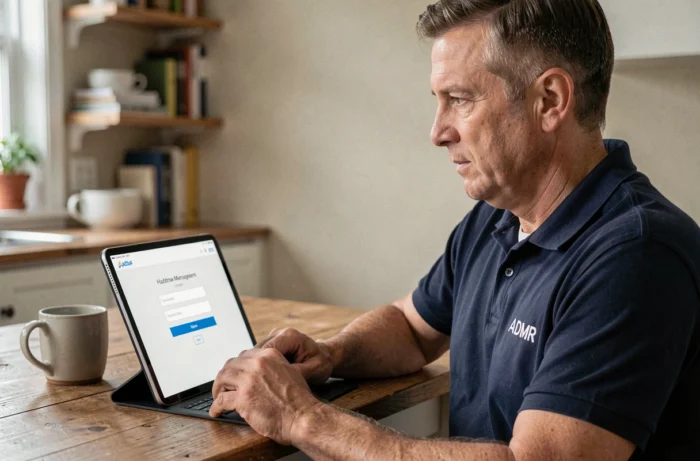
The automatic capitalization of the mobile keyboard is the primary cause of login failure. On smartphones, the keyboard automatically inserts a capital letter for the first character entered. If the identifier starts with a lowercase letter, the login is refused without a clear explanation.
Two reflexes to adopt before each input on mobile:
- Disable automatic capitalization by pressing the Shift key before typing the first character of the identifier.
- Check that the keyboard’s autocorrect has not altered part of the password, especially special characters that are sometimes replaced by dictionary suggestions.
- Enter the password by activating the “show password” option (eye icon) to visually check each character before validation.
The temporary password often contains uncommon characters (at sign, hash, braces). On some Android keyboards, these characters are found on a third input layer, accessible via the “?123” key and then “=<". Not finding them does not mean they are absent from the keyboard.
First Login and Changing the Temporary Password
Some federations require a password change upon first login. The form then imposes specific constraints: minimum length, presence of at least one digit and one special character. The new password must not resemble the previous one, which sometimes blocks employees who simply add a digit at the end.
One tip is to choose a short, easy-to-remember phrase, then extract the initials while inserting a digit and a special character. This method produces a robust password without requiring complex memorization.
The chosen password should be noted in a secure place. Password managers integrated into browsers (Chrome, Safari, Firefox) offer to automatically save the credentials upon the first successful entry. Accepting this proposal simplifies subsequent logins, especially on mobile where manual entry remains tedious.
Forgotten Identifier: How to Retrieve Your Philia Login
An employee who cannot find their identifier cannot retrieve it alone from the Philia portal. Unlike public platforms that offer a “Forgot Identifier” link, Philia does not have this self-service feature. The login is linked to the internal ID number or the employee’s name according to the conventions adopted by each federation.
The quickest approach is to check the initial assignment email or letter. Some employees find their identifier in the history of their professional messaging by searching for the words “Philia” or “identifier.” If this document is unavailable, the sector manager or HR service can communicate the login again, usually within the day.
To avoid experiencing this situation again, noting the identifier in the browser’s password manager upon the first successful login guarantees quick access next time. On mobile, the managers integrated into iOS (iCloud Keychain) and Android (Google Password Manager) save both the login and the password without additional effort.
Lost or Rejected Password on Philia: The Reset Procedure at the Federation Level
Philia does not offer a “Forgot Password” button in self-service like most public platforms. Password reset must go through the HR service or the sector manager of the departmental federation.
This constraint is related to the security architecture of the ADMR network. Access rights are segmented: a field worker only sees their schedule and the files of the beneficiaries assigned to them. The sector manager, on the other hand, accesses the management of the schedules for their entire team. Resetting a password therefore requires verifying the scope of rights associated with the account.
In practice, the reset time depends on the responsiveness of the local federation. Some process the request within the hour, while others require an internal ticket with a delay of up to one to two business days. Employees who report the problem by phone rather than by email generally receive a quicker response, as HR services in smaller federations do not continuously check their inbox.
Account Locked After Several Failed Attempts
Some Philia portals lock the account after three to five unsuccessful login attempts. The locking is not always indicated by an explicit message: the page may simply continue to display “Incorrect identifier or password” without specifying that the account is temporarily disabled.
This automatic locking is a security measure designed to protect the personal data of beneficiaries. It triggers even if the error is solely related to the password and the login is correct.
In this situation, waiting about fifteen minutes before trying again is not always sufficient. The unlocking depends on the security policy of the federation. Contacting the HR service or the sector manager directly remains the most reliable way to regain access without additional delay.
Navigating Philia ADMR After Login: Schedule and Beneficiary Files
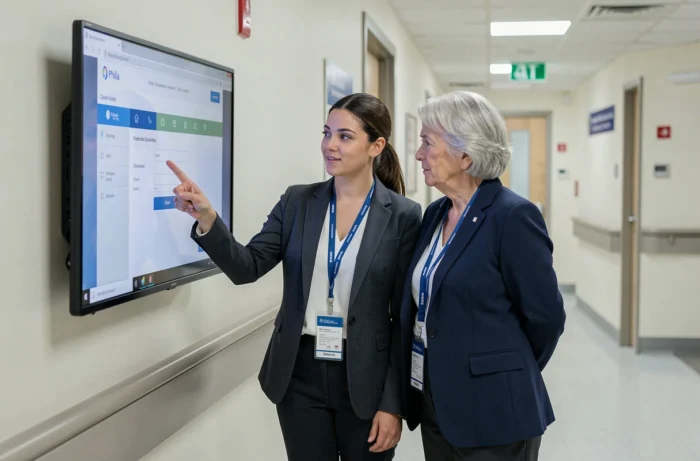
Once logged in, the home screen displays the weekly schedule of the worker. This is the most consulted screen, often several times a day. It groups the intervention slots with the beneficiary’s name, address, and type of service (household help, accompaniment, gardening, personal support).
The Philia schedule updates in real-time when the sector manager modifies an assignment. A worker checking their schedule in the morning may notice a change in the afternoon. Getting into the habit of checking the schedule before each trip avoids unnecessary interventions.
The beneficiary file, accessible from the schedule by clicking on the person’s name, contains the necessary information for the intervention: specific instructions, contact details of the family referent, history of services. This data is confidential and subject to the personal data protection rules of the ADMR network.
Tracking Hours and Validating Interventions
The hour tracking module allows declaring the time spent with each beneficiary. Any hour not validated in Philia can delay payroll processing. Entry ideally occurs at the end of the day, before the weekly closure set by each federation.
Some federations require daily validation, while others require validation at the end of the week. The sector manager specifies this frequency during onboarding. In case of doubt, it is better to validate each day to avoid cumulative forgetfulness.
Modifying or Correcting a Validated Intervention
An input error on the declared hours cannot always be corrected by the worker themselves. On most Philia portals, a validated intervention becomes locked after the weekly closure. Any correction must then go through the sector manager, who has the necessary rights to reopen the entry.
For corrections made before closure, some federations allow the worker to directly modify their declarations from the tracking module. It is enough to click on the concerned intervention, correct the time, and then validate again. Checking entries on the same day remains the simplest method to avoid late correction requests.
Philia ADMR Inaccessible: Distinguishing Server Outage and Local Issues
The Philia portal is subject to server maintenance, sometimes scheduled outside of office hours, sometimes unforeseen. When the login page does not display at all, two quick checks can help locate the problem:
- Test another website to confirm that the internet connection is working properly.
- Try from another device (personal phone if the issue is with the desktop, or vice versa) to rule out a browser or cache issue.
- Clear the browser cache and delete cookies related to the Philia domain, then relaunch the page.
If the problem persists on multiple devices and networks, it is likely a server-side maintenance issue. In this case, contacting the sector manager remains the most reliable channel to obtain an estimate of the recovery time. Not all federations have set up a public server status page.
Slow Connection or Repeated Disconnections in the Field
Field workers often connect from areas with limited network coverage. A mobile connection in 3G or a weak Wi-Fi signal can cause disconnections during entry, resulting in the loss of declared hours if they have not been validated before the cutoff.
Two precautions can limit this risk. Validating each intervention individually rather than entering everything in one go protects against data loss. Prioritizing the beneficiary’s home Wi-Fi connection (when available and permitted) often provides a more stable speed than mobile networks in rural areas.
On some older phones, the pre-installed browser poorly manages secure sessions of Philia. Using Chrome or Firefox in their latest version resolves most display and unexpected disconnection issues. Checking that the browser is up to date via the Play Store or App Store takes less than a minute and may be enough to resolve a recurring problem.
Connecting to Philia ADMR relies on simple but specific reflexes related to the decentralized operation of the network. Carefully keeping the URL provided by their federation, monitoring the case of identifiers on mobile, and validating hours without waiting for the end of the week are the three points that make the difference between a smooth onboarding process and recurring blocks.